Using Riversoft STCP DirectLink Portal
Riversoft® STCP DirectLink Portal brings file sending (upload) and receiving (download) together in a web interface, with no software to install.
Access the portal
- Open the portal address provided by your administrator.
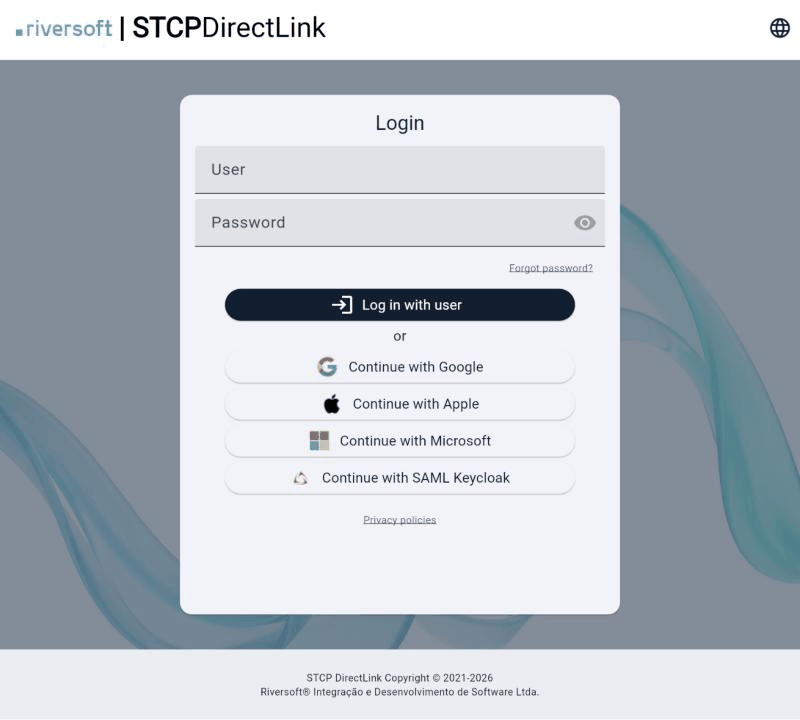
- Enter your User and Password and click Log in with user.
- If your administrator enabled SSO sign-in, you can also click one of the Continue with… buttons (for example, Google, Apple or Microsoft) and sign in with your organization’s account.
Note
The SSO buttons shown depend on the portal configuration. See Riversoft STCP DirectLink Portal configuration.
Choose the language
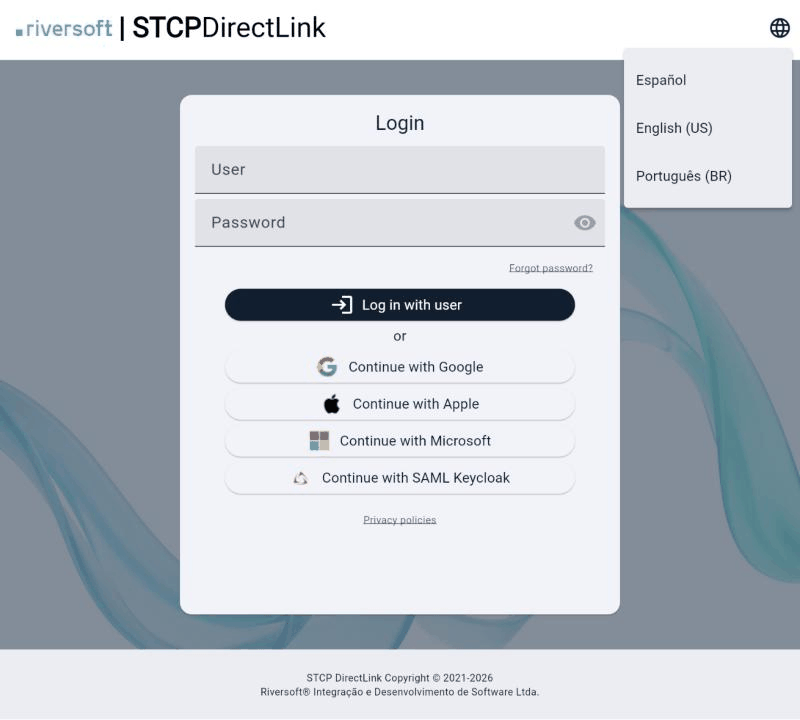
The language is chosen on the sign-in page. Click the globe icon in the upper-right corner and select Español, English (US) or Português (BR). After you sign in, the portal keeps the language you chose.
Recover or change your password
Request the security code
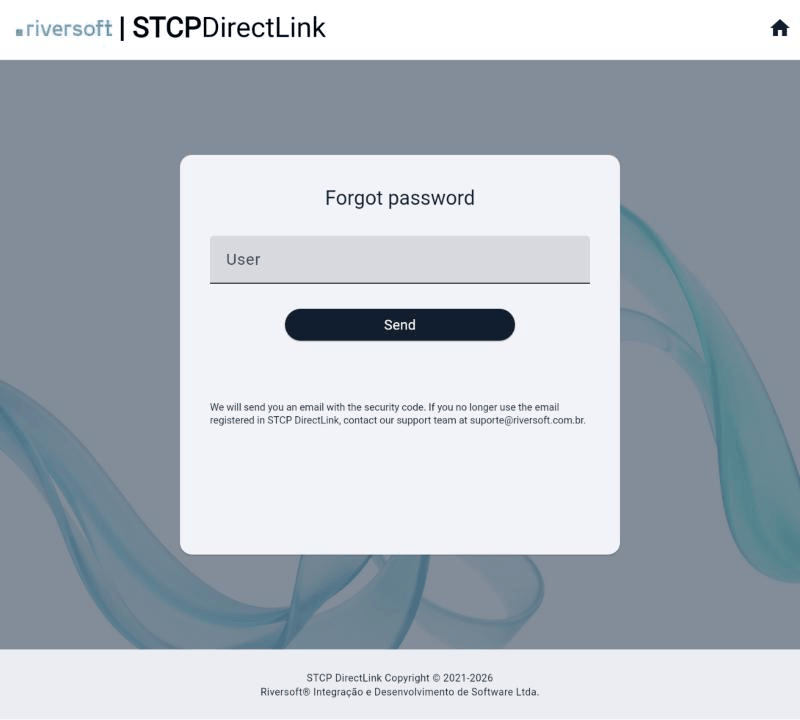
On the sign-in page, click Forgot password?, enter your User and click Send.
Enter the new password and the code
The portal opens the Change password page and sends a security code to the user’s registered email address. Fill in New Password, Confirm New Password and Security code, and click Send.
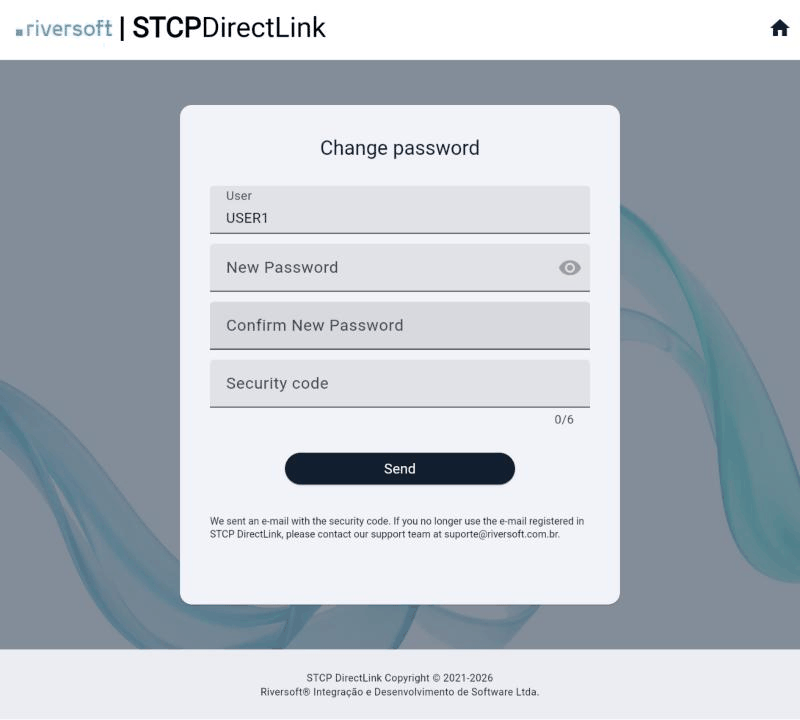
Expected result: the password is changed and you can sign in with the new password.
Warning
If you no longer use the registered email address, the code will not reach you. In that case, contact the support address shown on the page.
Send files
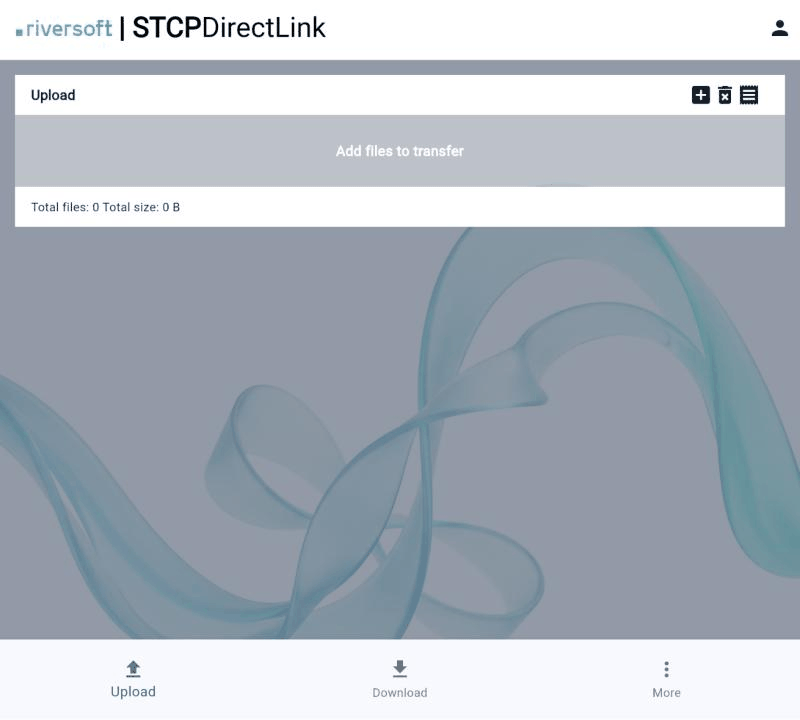
Open the upload page
Click Upload in the bottom bar.
Add the files
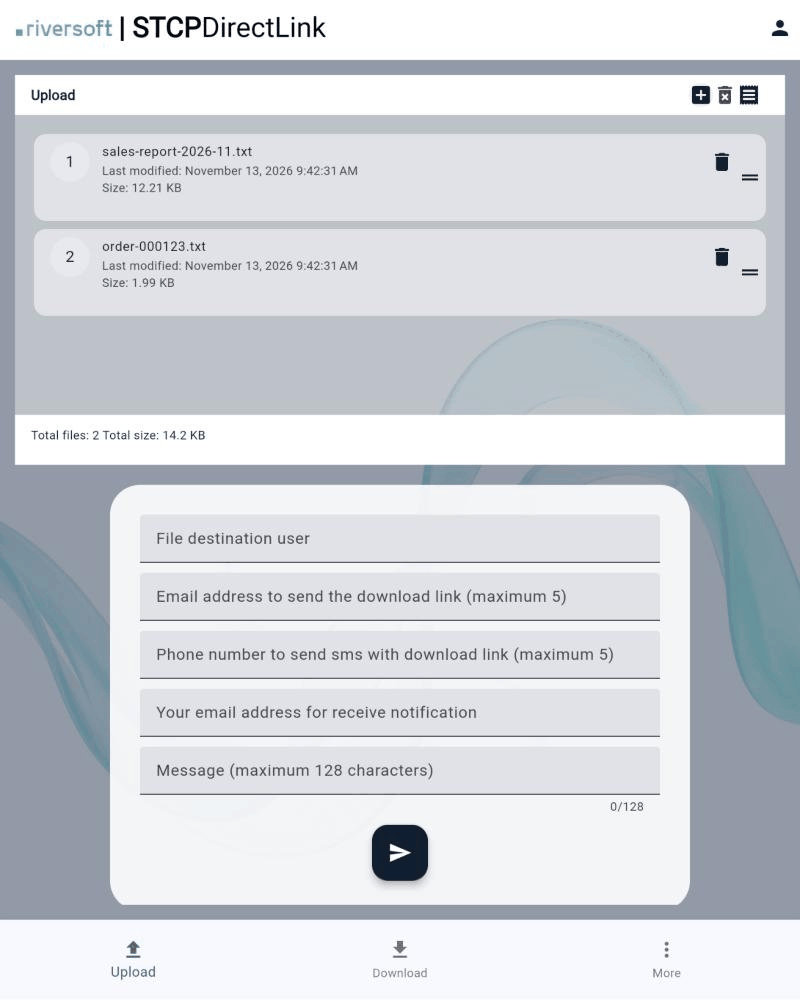
Click the + icon in the upper-right corner and select the files. Each file is shown with its name, last modified date and size, and the footer shows the total number of files and their total size.
To remove a file from the list, click the trash icon next to it. To clear the whole list, use the trash icon in the header.
Enter the recipients
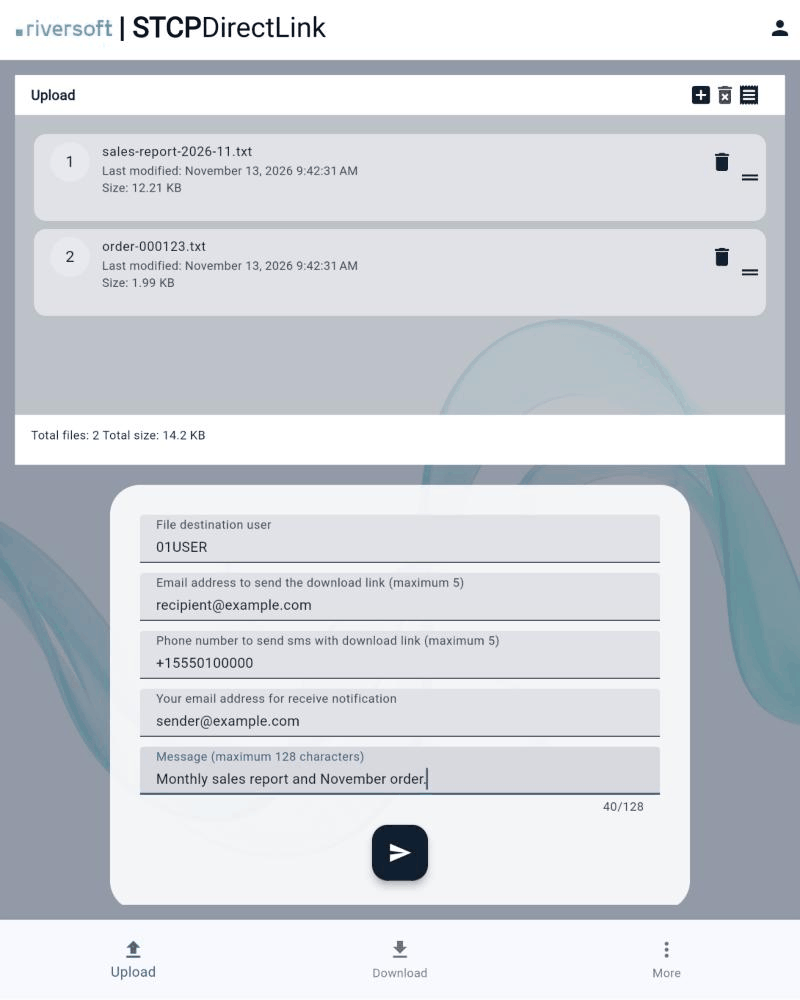
Fill in the fields as needed. The fields shown depend on the features enabled by your administrator.
| Field | Use |
|---|---|
| File destination user | Riversoft STCP DirectLink user who will receive the file. |
| Email address to send the download link | Email address that will receive the secure download link (up to 5 addresses). |
| Phone number (SMS) | Mobile number that will receive the secure download link by SMS (up to 5 numbers). |
| Your email address (notification) | Your email address, to be notified when the recipient downloads the file. |
| Message | Text sent with the notification (up to 128 characters). |
Send
Click the send button (paper plane) below the fields.
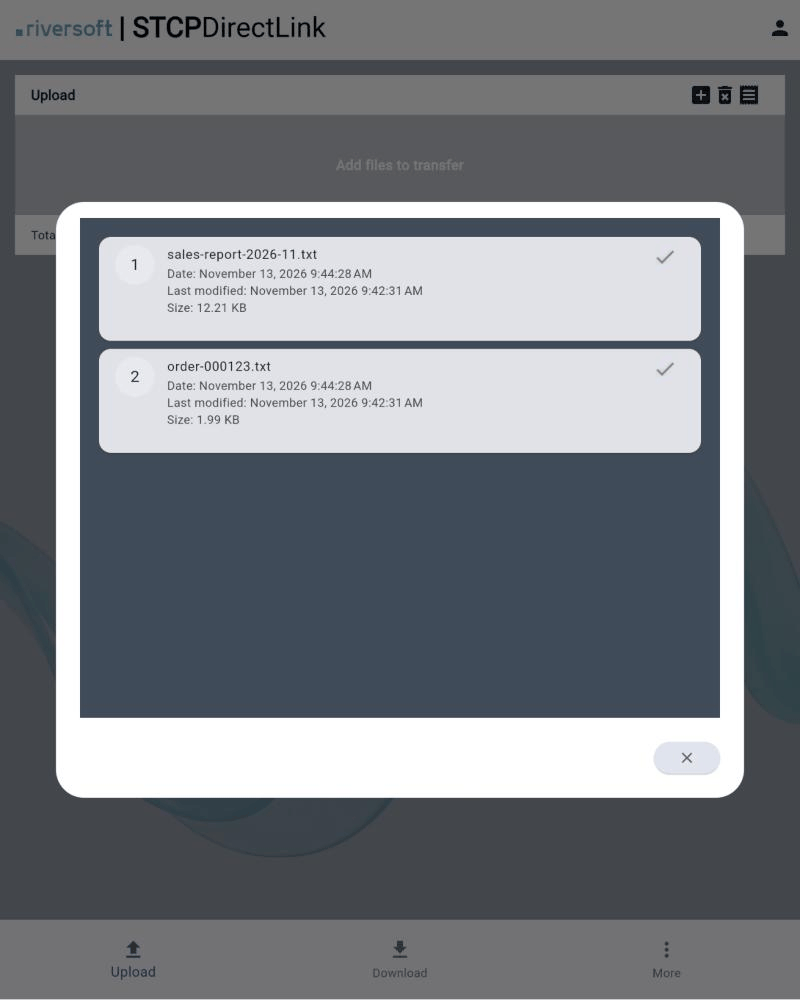
Expected result: the portal shows each file sent with a check mark. When provided, the recipients receive the secure download link.
Receive files
- Click Download in the bottom bar.
- The page lists the available files, with name, last modified date and size.
- Click the download icon of the file you want.
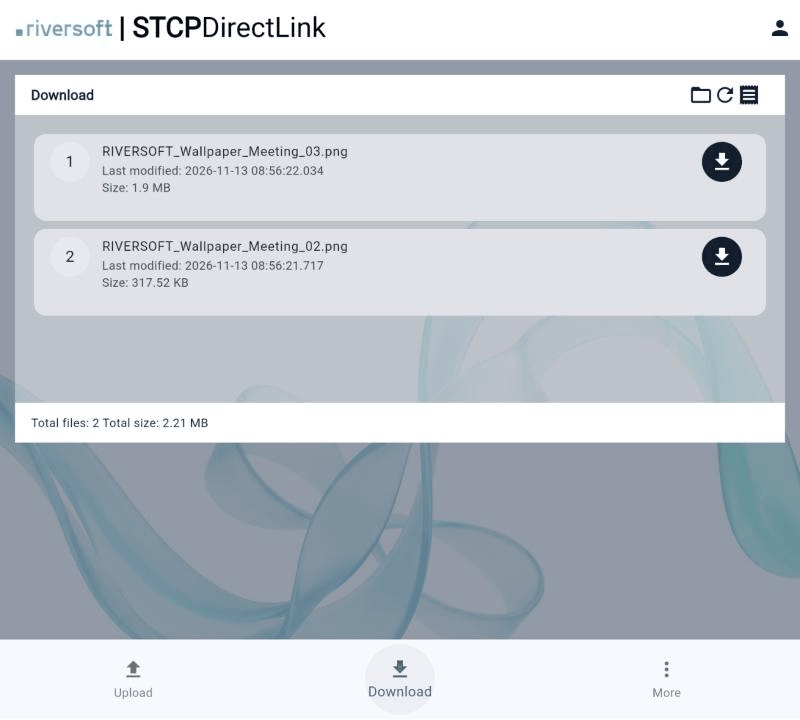
The icons in the download page header are:
| Icon | Function |
|---|---|
| Folder | Switches between the available files and the backup folder. |
| Circular arrow | Refreshes the list. |
| List | Opens the transfer history. |
Backup folder
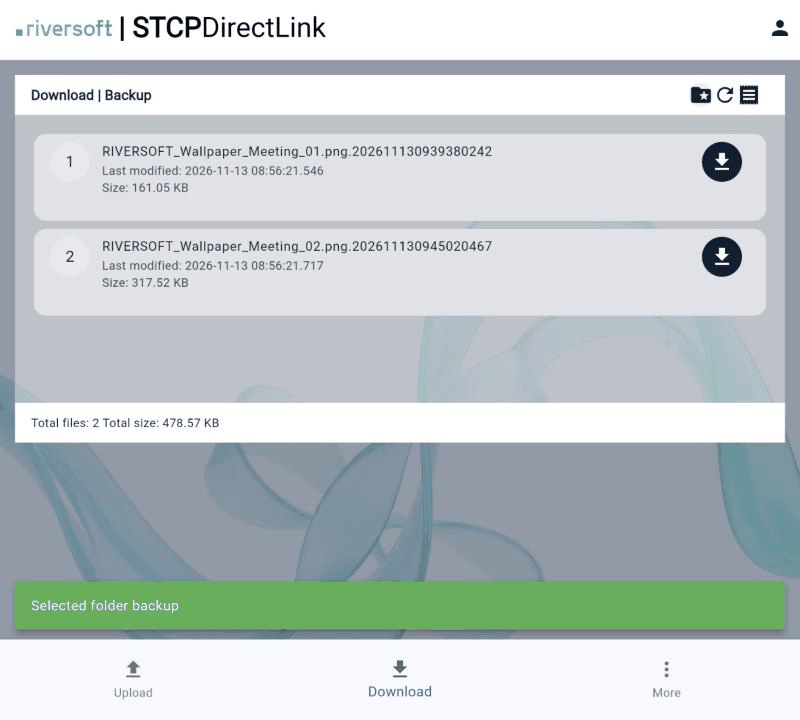
After the download, the file moves to the backup area. Click the folder icon to see the backup: the title changes to Download | Backup and each file is shown with the download date and time at the end of its name (for example, report.png.202611130939380242). To go back to the available files, click the folder icon again.
Check the history
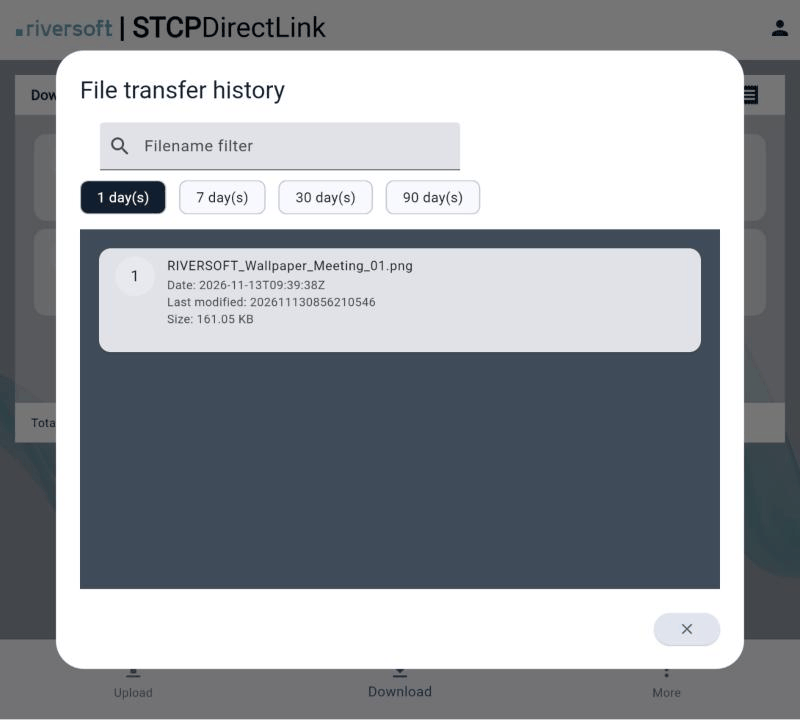
On the upload and download pages, the list icon in the header opens the File transfer history. Filter by file name and choose the period: 1, 7, 30 or 90 day(s).
Other options
- More, in the bottom bar, shows the portal information, such as the version and the API address in use.
- The user icon in the upper-right corner has the Logout option.
Receive a file through a secure link
A recipient who receives a secure link by email, SMS or WhatsApp:
- Opens the link.
- Enters the security code sent to the same email address or mobile number before it expires.
- Downloads the file.